4. Making Your Reaction MARS-Compatible
What to do in this step: Add a MARS Link at the start and a MARS Complete at the end of your reaction blueprint so MARS can manage execution and queuing.
Prerequisites
- One reaction blueprint (e.g. a blueprint that throws a prop on donation)
- A scene with MARS Hub
What changes
A typical old-style reaction looks like this:
A MARS-compatible reaction changes only the start and end. The actual actions in the middle stay the same.
Each node's ports are described in the Node Reference.
- MARS Link: The entry point MARS calls when it runs this reaction. Event data like nickname, amount, and message is also read from here.
- MARS Complete: Signals MARS that the reaction has finished. Only after this signal does MARS start processing the next queued request.
- You can remove any manual queue (like Auto Queue Flow) — MARS handles that now.
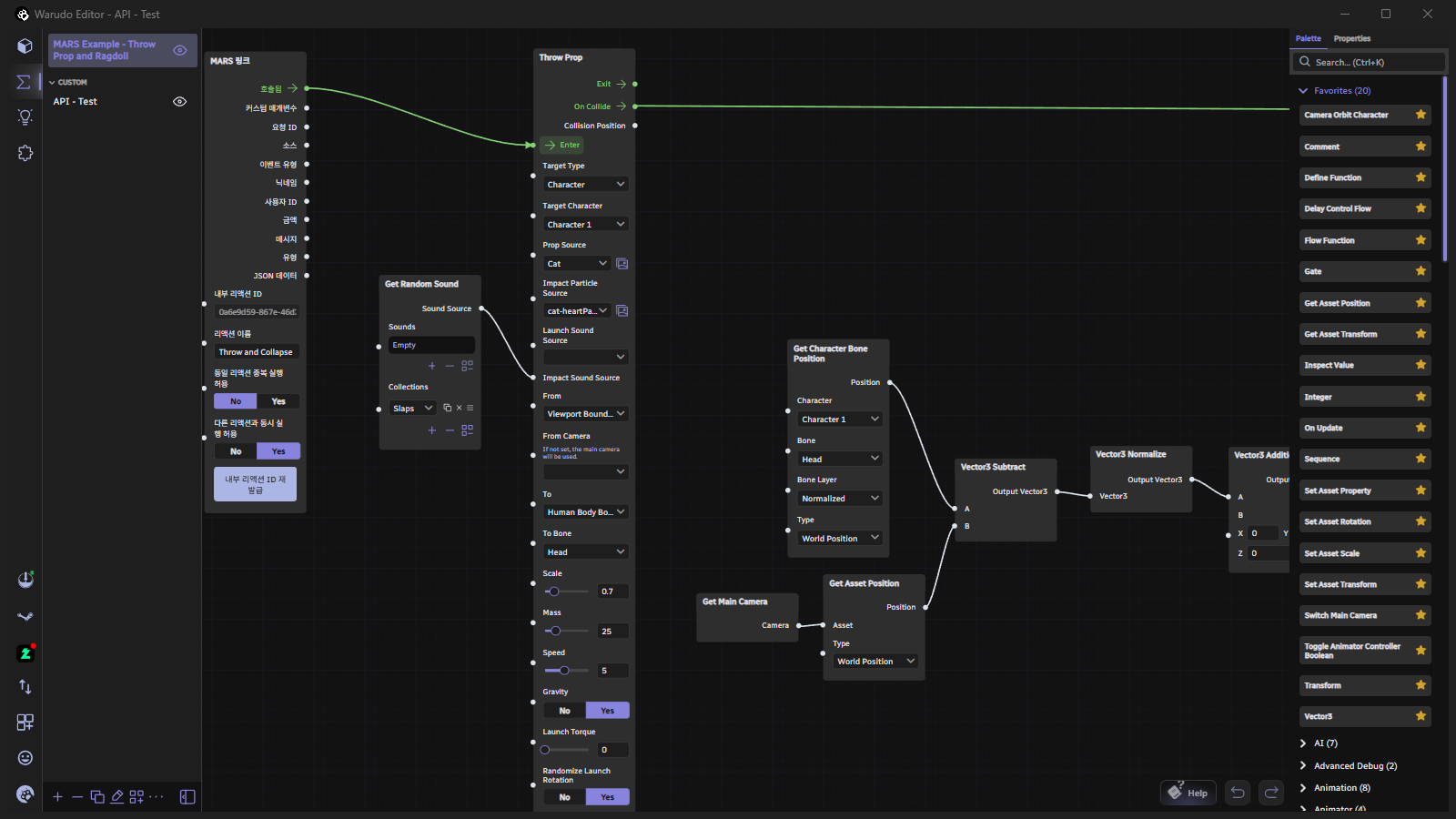
The example Throw blueprint uses exactly this structure.
Steps
-
Open the reaction blueprint.
-
From the Moraecat category, place a MARS Link node. Use only one MARS Link per blueprint.
-
Set the Reaction Name on the Link. This name appears in the Hub and in shared files. (e.g.
Throw and Collapse) -
Connect the Invoked output of the Link to the Enter input of the first action. Remove any previous connection from the old entry point (Define Function, event node, etc.).
-
Place a MARS Complete node and connect the flow of every branch where the reaction truly ends to the Run input of Complete.
- If you call Complete immediately at the start, MARS treats the reaction as done and starts the next request right away. Connect it after all waits and cleanup flows.
- If the reaction has multiple branches, all branches that actually execute must reach Complete.
-
Set the execution policy on the Link.
Option Effect when Yes Allow Re-running the Same Reaction This reaction can run again even while it is still running Allow Running with Other Reactions This reaction can overlap with other reactions (the other reaction must also allow it) For reactions that move the same target (motion, camera, etc.), both settings at No is safest to start.
-
If you need event data, connect the data outputs from the Link (Nickname, Amount, Message, etc.) to the relevant reaction nodes.
-
Click Refresh Reaction List in MARS Hub. The new reaction is registered and a draft rule that uses it is added. If the reaction has no MARS Complete node, a warning "No MARS Complete node" appears.
-
Set conditions on the rule as in step 2, verify with Test Run, and set Active to Yes.
The Throw example picks the impact sound using a Get Random Sound node instead of a fixed file.
Put a Warudo built-in collection (e.g. Slaps) in Collections and connect the Sound Source output to the Impact Sound Source input of Throw Prop.
Built-in sounds are available on the recipient's Warudo, so you don't need to include the audio file when sharing.
A duplicated blueprint shares the same Internal Reaction ID as the original, so only one of them gets registered. Click Regenerate Internal Reaction ID on the Link node in the copy. When releasing an update to a reaction you have already shared, keep the ID the same so recipients can recognize it as the same reaction and choose to update it.
Verification
- Registered count in MARS Execution Status in the Hub increased by one.
- The rule summary shows
Connected · Has Complete node. - Pressing Test Run twice quickly: if re-running is disabled, the second run starts only after the first finishes.
Next step: 5. Exporting a MARS-Compatible Blueprint